
Now even kids can Change PTCL WIFI Password through 5 easy steps. You just have to put 192.168.1.1 in your address tab and wait to open an “admin name” & “password” section. It looks very easy and in 5 easy steps, we have made the explanation easier to understand for all visitors. Apna4G has updated this article with a step-by-step explanation including images.
If you are using PTCL internet, and you want to change the weak router password, then quickly change it. Now changing the password is very easy as Apna4G has updated a new step-by-step changing method with images.
PTCL internet is considered as best landline internet of Pakistan. It is just because of its eye-blinking fast internet uploading & downloading speed. In addition, the landline internet has the cheapest monthly packages in which you can also avail (phone + internet) service. However, the addition of more services will definitely increase your monthly bill.
Change PTCL WIFI Password
Always remember that your (WIFI or Router) must be connected to the computer, mobile, or laptop so that you can easily access the login tab of that device. Hence, the connection between the WIFI device and user computer is necessary to successfully change the pin of the router.
Here are the five basic & easy steps to change the PTCL WIFI password:
- Insert 192.1681.1 or 192.168.10.1 in the new tab
- Provide “admin” as your username & password
- Now select WIRELESS>SECURITY>WPA/WAPI
- Type new “username” & “password”
- Click on “Save & Apply”
Step 1: Type IP Address
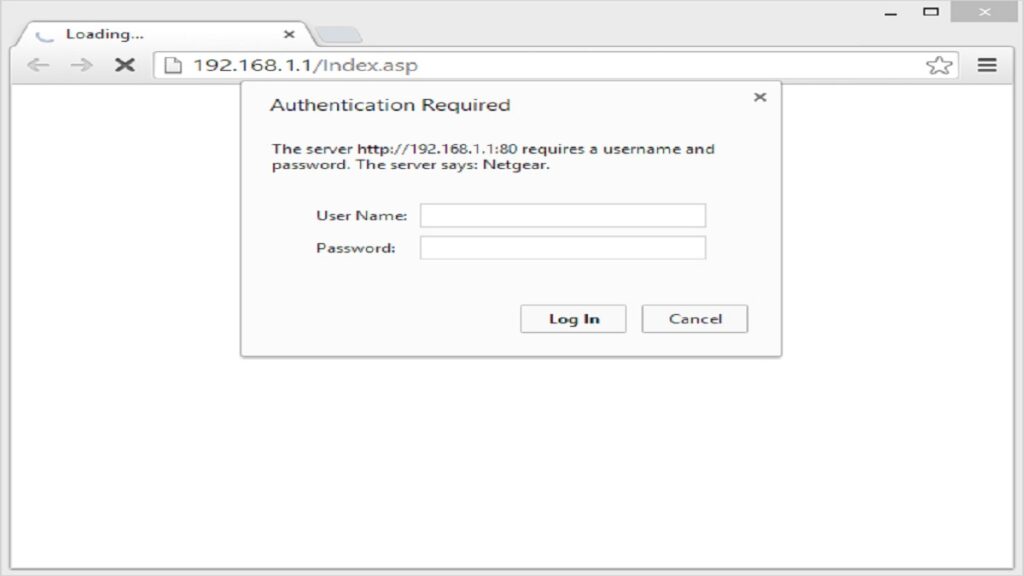
In step 1 you have to simply open your internet browser. After opening your browser type default PTCL IP Address 192.168.1.1 or 192.168.10.1 in the search bar.

Step 2: Username & Password
After that, you have to enter the password & username. Type “admin” in PTCL Default USERNAME & for PASSWORD re-type “admin”. Hence, the username and password are admin.
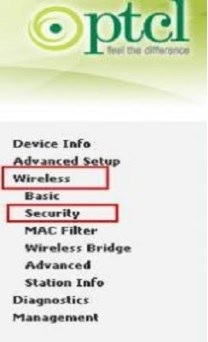
Step 3: Wireless > Security
On the front page, a default menu is present on the top left side. Click on “Wireless” and after that click “Security”.
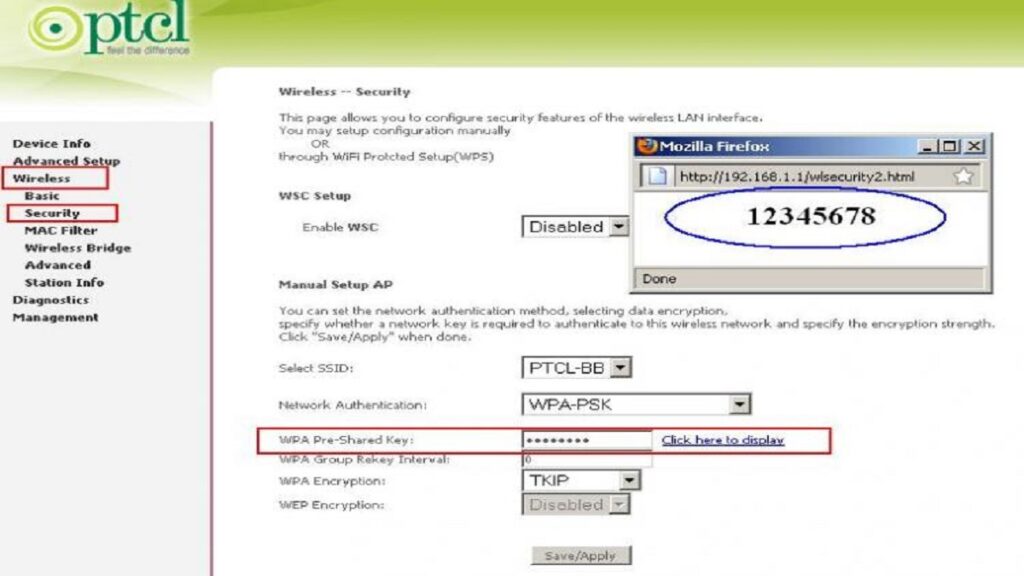
Step 4: Change Name & Password
The security bar will open all security controls of the WIFI router. You can change the WIFI name by clicking on the “Select SSID” option. Change your password by clicking on the “WPA/WAPI” pass phrases.
Step 5: “Apply/Save”
The last step is always easy. After typing your desired name and password just click on “Apply/Save”. Your new settings will apply and save on the router. PTCL has updated its new WIFI routers. However, the password or name-changing method is the same. If you further feel any difficulty in changing Change PTCL WIFI Password, contact your service provider. Click here to get details about PTCL TV Channels from here.
“You Have Done”
These 5 steps lead the user to change both the password and the router name successfully. However, if you still have any questions or want any guidance? Please comment on your problem below, so we can help you. Thanks for your kind visit.